Access the position description library
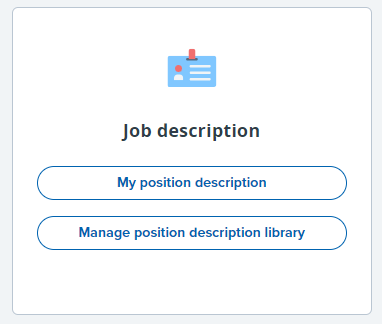
To access the position description (PD) library from the dashboard, click Manage position description library from the Job description card. It can also be accessed by clicking Library from the left sidebar and then Position Descriptions.
Find a position description
Use the library search fields to find PDs. Be sure to remove any previously entered search criteria using the Clear button. The PDs in a user’s library are determined by their teams and permission level. If you need access to an existing PD that is not showing up in your library, contact Human Resources to request access.
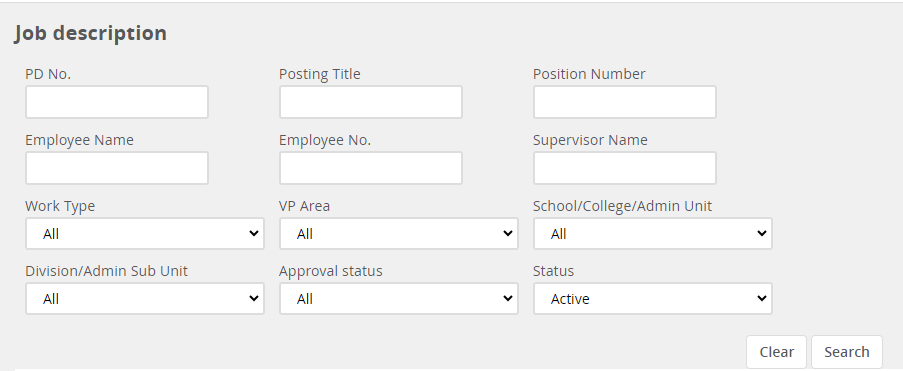
After entering your search criteria and click the Search button. Results will appear below in a list view. Results can be sorted by clicking on the title of the column you wish to sort by. A green arrow will indicate the sorting column selected. Click the title again to reverse the sort order.

Launching a position description
There are many ways to start a PD. Use this 'when do I ... in MyTrack' table to select the best option based on your needs.
To update or modify an existing PD that has not yet been approved, click Edit to the far right of the PD in the list view.

To update or modify an approved PD, click Edit, jump down to the Users & approvals section, by clicking that link from the left sidebar menu.
Within the Approval process box, click the Restart Approvals button.
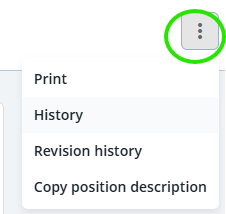
To copy an existing position description, click View next to the PD you wish to copy. From the ellipses menu select Copy position description.
To launch a blank template, click New position description from the PD library, located in the upper left under the PageUp logo.

Provide information about the position
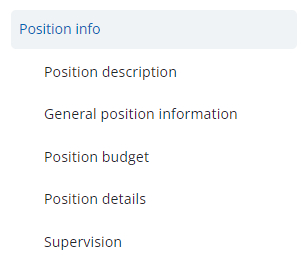
Within the PD, begin with the Position info section. Fill in all relevant fields with information about the job. Ensure that you complete all mandatory fields (marked with an asterisk).
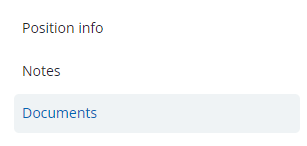
You can jump to different sections of the PD using the nested links in the left side bar navigation menu.
Add notes
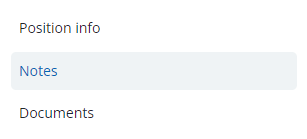
Use the Notes section to record extra information about the PD. Notes are visible to anyone else who has access to the PD.
Upload documents
Use the Documents section to upload organizational charts or other files. Like notes, documents are accessible to anyone else who has access to the PD.
Saving and submitting
Save a draft can be used when you need to save the PD you are working on and come back and complete it at another time. When all final details have been entered, click Submit to start the approval process and stay on the page, or use Submit and exit to start the approval process and exit the PD. This will send the PD to the first approver in the approval process for their review.

Once all approvers have reviewed and approved the PD, you will receive an email notification and the PD will show an Approved status in your PD library. Approved PDs are locked from further editing.